Hybrid OCR in PyMuPDF4LLM
March 31, 2026
More accurate, 50% faster. Built for real‑world PDFs.
PyMuPDF4LLM applies OCR only when it is genuinely required to obtain the complete text of a PDF page. If a page already contains sufficient extractable text, OCR is skipped entirely — avoiding unnecessary work and eliminating the risk of degrading high‑quality digital text.
When OCR is needed, PyMuPDF4LLM automatically selects the most suitable OCR plugin available in the runtime environment, balancing detection accuracy with processing speed.
Its built-in OCR plugins implement a Hybrid OCR strategy: only those regions lacking extractable, legible text are passed to the OCR engine. This selective approach typically reduces OCR processing time by around 50% while improving recognition accuracy, since the engine focuses exclusively on the problematic regions. The recognized text is then merged back into the original page, enriching it without disturbing existing digital content.
What Problems Does Hybrid OCR Solve?
Modern PDFs are rarely purely digital or purely scanned. They are usually mixed documents: digital text, embedded images, vectorized text, corrupted encodings, embedded OCR layers — all on the same page.
Traditional OCR converts every page to an image with a new text layer. This leads to:
- Slower processing
- Loss of original text quality
- Layout distortion
- Unnecessary OCR on already‑readable text
Hybrid OCR solves this by applying OCR only where there is no legibly extractable text.
How Hybrid OCR Differs from Full‑Page OCR
| Full‑Page OCR | Hybrid OCR (PyMuPDF4LLM) |
|---|---|
| OCRs the entire page | OCRs only regions without extractable text |
| Replaces original text | Preserves all readable text |
| Slower | Faster (less OCR work) |
| Can distort layout | Keeps original layout intact |
| Converts all content to pixels | Preserves all original content |
Hybrid OCR is designed for mixed PDFs, where preserving original text and other content is essential.
Benchmarking Full‑Page OCR vs. Hybrid OCR
General considerations about the differences between Full-Page OCR and Hybrid OCR.
| Scenario | Full‑Page OCR | Hybrid OCR |
|---|---|---|
| Mixed PDF | Slow | Fast |
| Digital PDF with small scanned region | Very slow | Very fast |
| No extractable text, full-page images, etc. | No difference in speed or quality | No difference in speed or quality |
| Accuracy | Lower (overwrites text) | Higher (preserves text) |
To get an idea of the speed gains, here are measurements for an example page (19) from a US Form 10K report which looks like this:
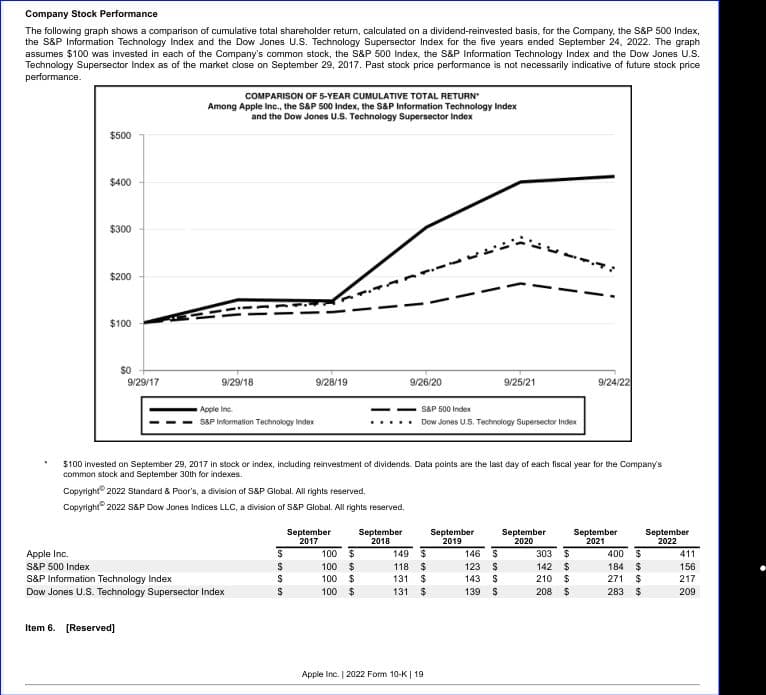
We used the OCR engines Tesseract and RapidOCR to process the page in full-page and in hybrid OCR mode.
We also combined both engines and used RapidOCR for text detection only (which gives us high-precision text line boundary boxes) and Tesseract for text recognition in each of the boundary boxes. This approach has two advantages compared to using RapidOCR alone: It is better and faster.
- Tesseract’s text recognition is better and much faster than RapidOCR’s
- A higher overall speed because RapidOCR’s text recognition is its slowest part
| OCR Engine | Full-Page OCR | Hybrid OCR (PyMuPDF4LLM) | Speedup |
|---|---|---|---|
| Tesseract | 1.50s | 0.81s | ↑ 46.0% |
| RapidOCR | 7.24s | 3.70s | ↑ 48.9% |
| Combined | 5.48s | 2.80s | ↑ 48.9% |
| Average | 4.74s | 2.44s | ~48% |
Taking speed and quality into account, PyMuPDF4LLM’s automatic choice is combining RapidOCR and Tesseract if both engines are available.
Calls to OCR engines in PyMuPDF4LLM are wrapped in “plugins” (also called “adaptors”) which contain the necessary code for interfacing with PyMuPDF.
When OCR Runs Automatically
PyMuPDF4LLM analyzes each page and triggers OCR only when standard text extraction would otherwise be incomplete. There are four detection signals.
Text in Images
Text is human readable, but actually consists of pixels. The image from the above mentioned page is a typical example:
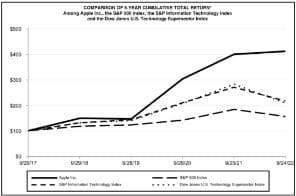
Extraction result: empty.
The page analyzer will signal “image text”.
Illegible Text: Replacement Unicode
Text is human readable, can be copy-pasted with the mouse in PDF viewers and is extractable, but extraction yields “����”.
This may happen for damaged fonts or when the font’s back-translation table “glyph → Unicode” is missing or incomplete - either by accident or on purpose.
For instance, copying this text,

… and pasting it in an editor will result in this:

The page analyzer will signal “bad characters”.
Text‑Looking Vectors
Text is human readable, but actually consists of vectors mimicking characters. A simple explanation: if the lines “/-\|_|_” are carefully drawn, then the result will look like the word "ALL".Examples: Non-modifiable text in some unfilled forms (e.g. invoice forms), simple provision against text copy-pasting.
This is not text-extractable and not mouse-selectable, much like an image but will not exhibit pixel rasterizations when zooming into it.
When extracting the text of the following example page, only the selected part (yellow) will be returned. The “Lorem ipsum …” text is all vectors.

The page analyzer will signal “vector text”.
Existing OCR Text of Dubious Quality
A PDF may already contain OCR text, but it is inaccurate or corrupted or of dubious / unknown quality. Here is an example showing bad OCR quality for our example image: Ludicrous bounding boxes and numerous non-text artifacts.
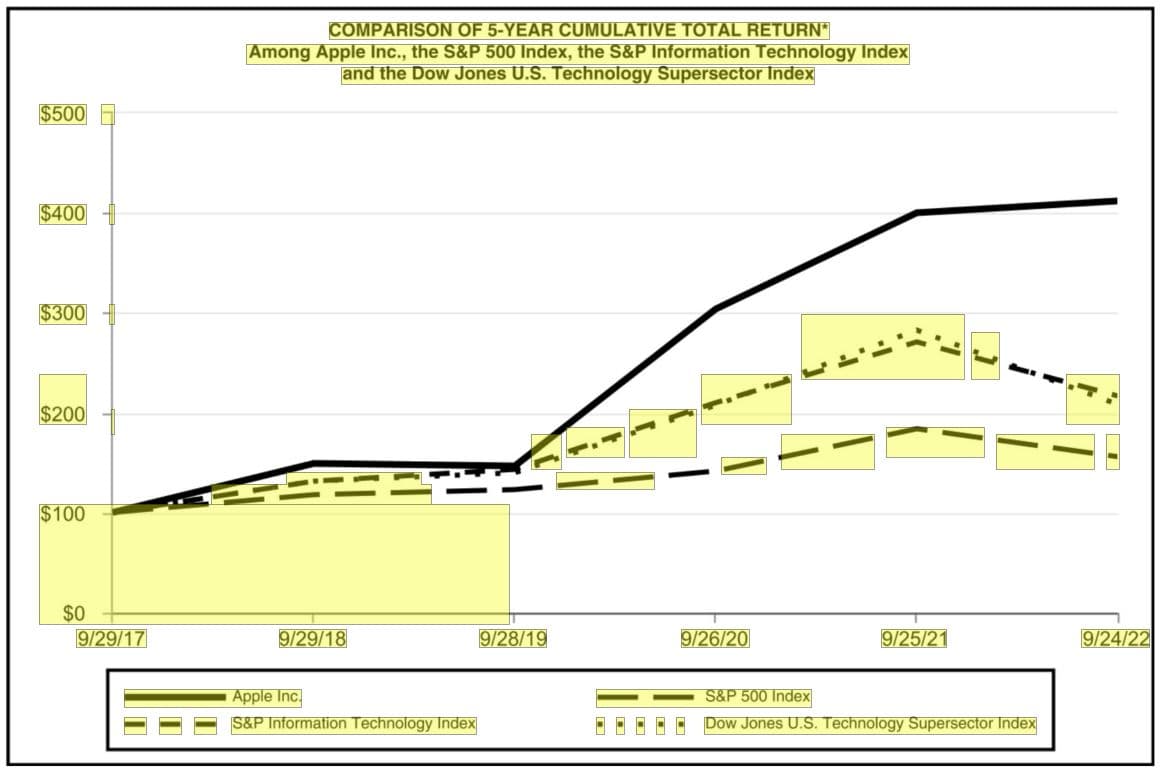
The page analyzer will signal “OCR text”.
What Is Preserved vs. Newly Generated
Hybrid OCR guarantees:
Preserved
- All legible digital text
- Original layout
- Text fonts, sizes, styles, color
- Text decorations (underlines, strikeouts)
- Other content (images, vectors)
Newly Generated
- OCR text for unreadable regions and illegible text
- Replacement for undesired / low‑quality OCR layers
The merge step ensures that original text is never replaced by an OCR version.
The Hybrid OCR Pipeline
Here is a step-by-step walkthrough using our page example.
Step 1 — Analyze the Page
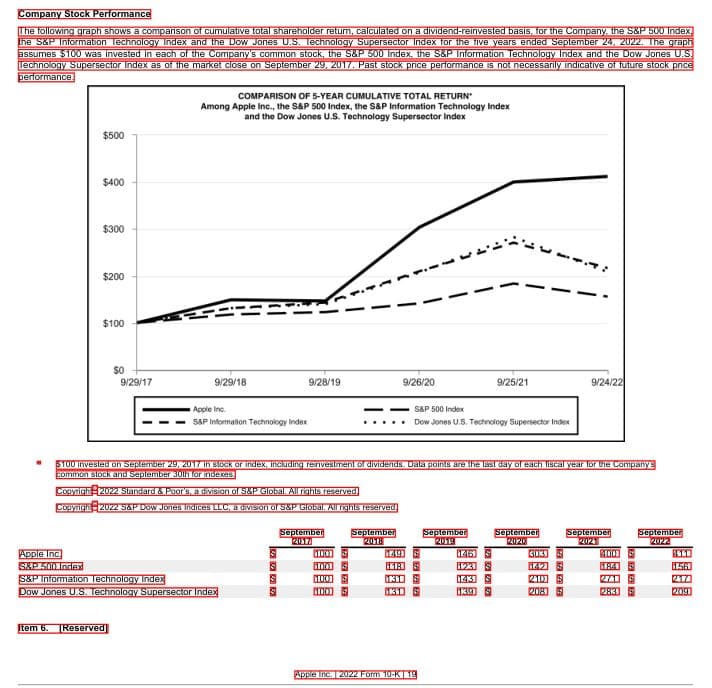
The page contains text, an image and some vectors, forming gridlines and row background shadings of a table.
Page analysis detects extractable text (marked red for better visibility), a text-heavy image and some vectors which however raise no text mimicry suspicion.
The analyzer recommends “OCR” with the signal “image text”.
Step 2 — Create a Temporary Working Copy of the Page
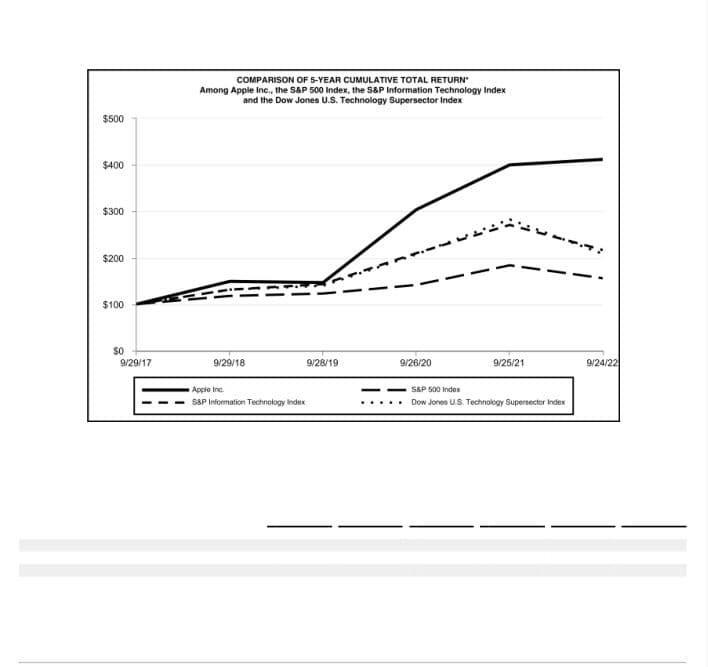
The chosen plugin / adaptor creates a temporary “scratch-pad” copy of the page and removes all legible digital text (as well as any old OCR text). Images and vectors are not touched: note the table gridlines and row shadings.
It then creates an image of the cleaned page and passes that to the selected OCR engine(s).
Step 3 — Run OCR on the Cleaned Page Copy
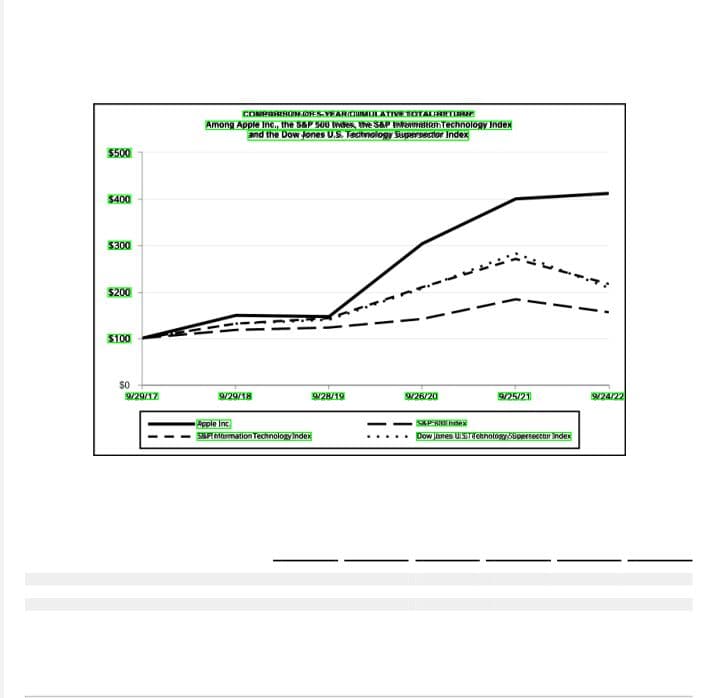
The OCR engine(s) recognize(s) the text in the image area (marked green).
The plugin extracts it for the next step and discards the temporary page.
Step 4 — Insert OCR Text in the Original Page
The plugin finally inserts the OCR text at the detected coordinates.
Readable text from the original page is preserved. Particularly note that the table has not been affected at all (gridlines, row backgrounds and its text are as before) keeping it fully detectable by the table finder algorithms.
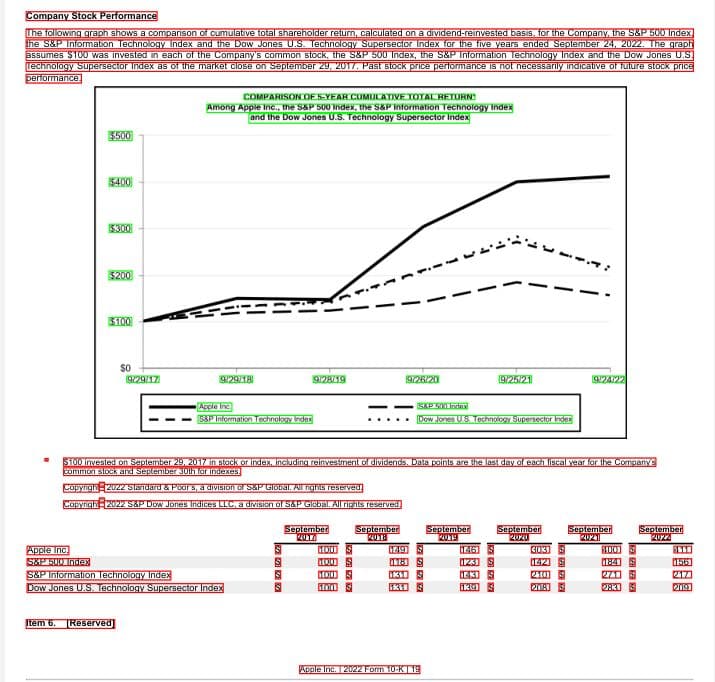
The final page contains a perfect blend of original and OCR text. PyMuPDF4LLM’s layout module and all downstream processing will be able to successfully work with it.
OCR Engine Selection Guide
At program initialization, PyMuPDF4LLM checks the availability of OCR engines that are supported by its built-in plugins and selects the most appropriate plugin (adaptor).
Supported engines currently include Tesseract-OCR and RapidOCR.
Here are criteria considered in this selection process.
Tesseract Plugin
- Best recognition accuracy for Latin languages
- Strong dictionary support for text recognition
- Much faster than RapidOCR or PaddleOCR for Latin-based languages
- Poor text bounding box precision for low quality scans
Use when: high speed is needed and good quality scans are available.
RapidOCR Plugin
- High quality text detection (bounding boxes)
- Strong Asian language support
- Fast enough for CJK-heavy documents
- Frequent issues with text recognition (separation of words)
Use when: detection precision matters over speed, but evaluate recognition quality.
Combined Engines Plugins
When Tesseract is installed and one of RapidOCR (or, respectively PaddleOCR) is also available combining the two yields the best quality at an acceptable speed:
- Use RapidOCR for text detection only. This delivers high precision bounding boxes for text lines with an acceptable speed.
- For each of the bounding boxes, use Tesseract to recognize the text therein.
- This delivers better quality than RapidOCR alone and at the same time is 25 - 50% faster.
Use when: best quality at acceptable speed is desired. This is chosen by PyMuPDF4LLM if both engines are installed.
Conclusion
We hope this post has shown how our Hybrid OCR solution can bring both speed and accuracy to your document processing needs. We're continuing to enhance and refine it, so we'd love to hear how it works for you!
If you found this useful, check us out on GitHub — a ⭐ or🍴 are always appreciated!
Discuss This Article with the Community
Have a question, a different approach, or something you built after reading this? Share it on the forum or join the Discord, we'd love to hear from you.