PyMuPDF Office: One Library, Every Document Format
October 27, 2026
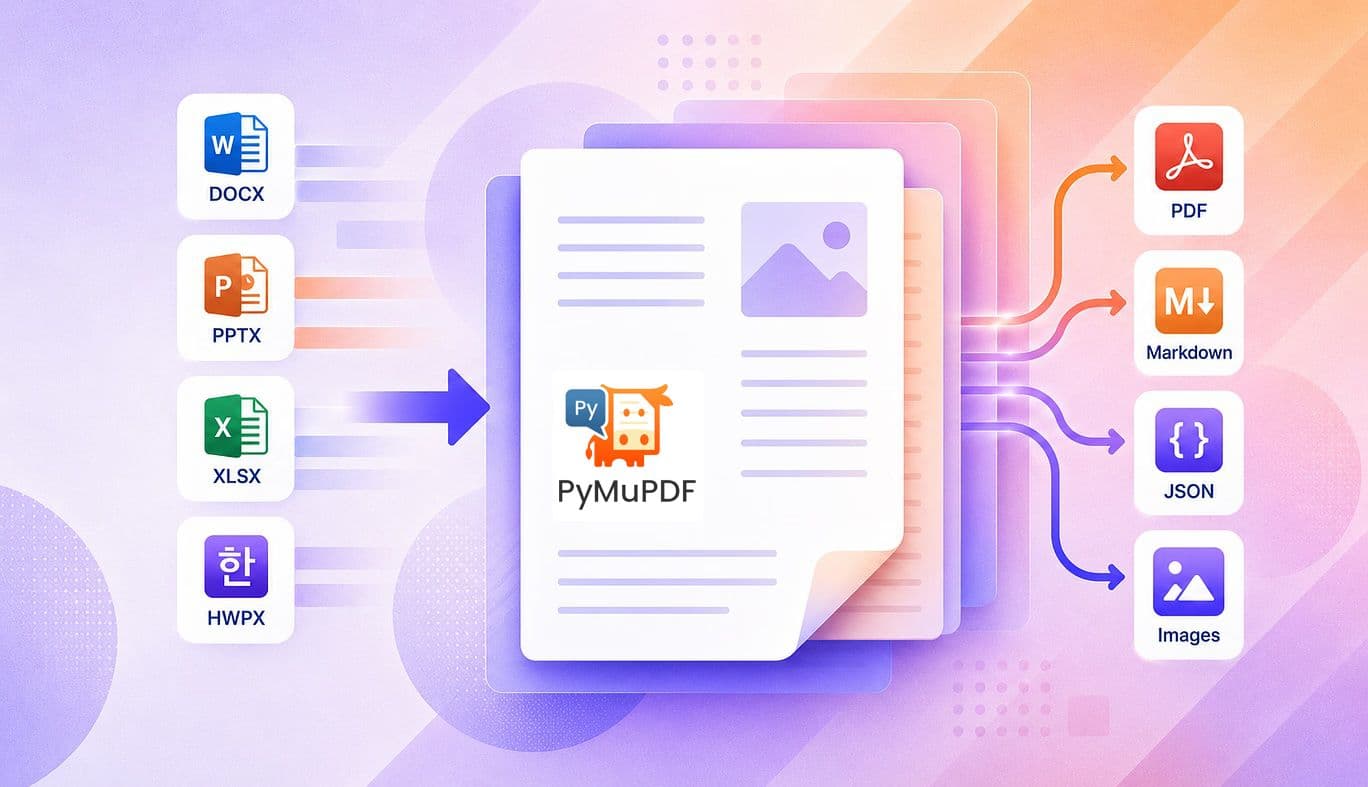
If you've ever had to juggle a handful of libraries just to turn a Word doc into a PDF, pull structured text out of a report, quickly get a Markdown representation or render an office document’s pages as images then PyMuPDF Office is worth a look. It's Artifex's commercial extension to the open-source PyMuPDF library, and it consolidates one API surface for reading, converting, and exporting Office documents across formats that normally require separate tools.
The problem it solves
Office documents, PDFs, and image/text exports each tend to come with their own tooling headaches. Converting .docx or .xlsx to PDF usually means shelling out to LibreOffice or wrestling with an automation library on Windows. Extracting structured content from a PDF for an LLM pipeline means reaching for yet another parser. PyMuPDF Office folds all of this into the same Document and Page objects developers already use for standard PDF work.
Office documents to PDF, natively
Install from PyPI with: pip install pymupdf-office. Once installed PyMuPDF Office extends the format support of core PyMuPDF to include .doc, .docx, .ppt, .pptx, .xls, .xlsx, and Korean Hangul formats (.hwp, .hwpx). Once unlocked, these open exactly like any other document:
import pymupdf.office
pymupdf.office.unlock()
doc = pymupdf.open("input.xlsx")For seamless conversion to PDF it is possible to do this with a one-liner using to_pdf():
pymupdf.office.to_pdf("input.docx", "output.pdf")Markdown & JSON output for LLM pipelines
This is where PyMuPDF Office supplies two more simple one-liner operations to_markdown() and to_json():
# Export a PDF to a Markdown file
pymupdf.office.to_markdown("input.docx", "output.md")

# Export a PDF to a structured JSON output file (fonts, positions, spans)
pymupdf.office.to_json("input.docx", "output.json")If you don't want to write results to file and require an inline result for your application, then just omit the output file name parameter:
md = pymupdf.office.to_markdown("input.docx")
json = pymupdf.office.to_json("input.docx")Image exports
Page rasterization is handled through PyMuPDF's core Page methods, and with PyMuPDF Office this simply means they now also work against Office documents once opened with no API change required:
doc = pymupdf.open("input.docx")
# Render a page to an image
pix = page.get_pixmap(dpi=150)
pix.save("page.png")Because Office files load into the same Document/Page model as PDFs, every existing extraction or rendering method becomes available.
To convert all your document pages to image format, you can just iterate the document pages and export as image files:
doc = pymupdf.open("input.docx")

for i, page in enumerate(doc):
    pix = page.get_pixmap(dpi=150)
    pix.save(f"page-{i+1}.png")

doc.close()Note
The DPI setting may slow down your image export if set to higher resolutions!
Getting started
PyMuPDF Office is commercial software layered on the open-source core (pip install pymupdf-office), and it's currently available for Windows, Linux, and macOS on x86_64/arm64. Without a license key you are limited to the first three pages of any document. Should you need more you can find a full 60 day Trial Key is available - enough to evaluate the conversion speed & quality before committing. Full licenses are available through Artifex.
For further information on PyMuPDF Office see the PyMuPDF Office documentation.
Discuss This Article with the Community
Have a question, a different approach, or something you built after reading this? Share it on the forum or join the Discord, we'd love to hear from you.