PyMuPDF 2.2: Form Fields Made Easy
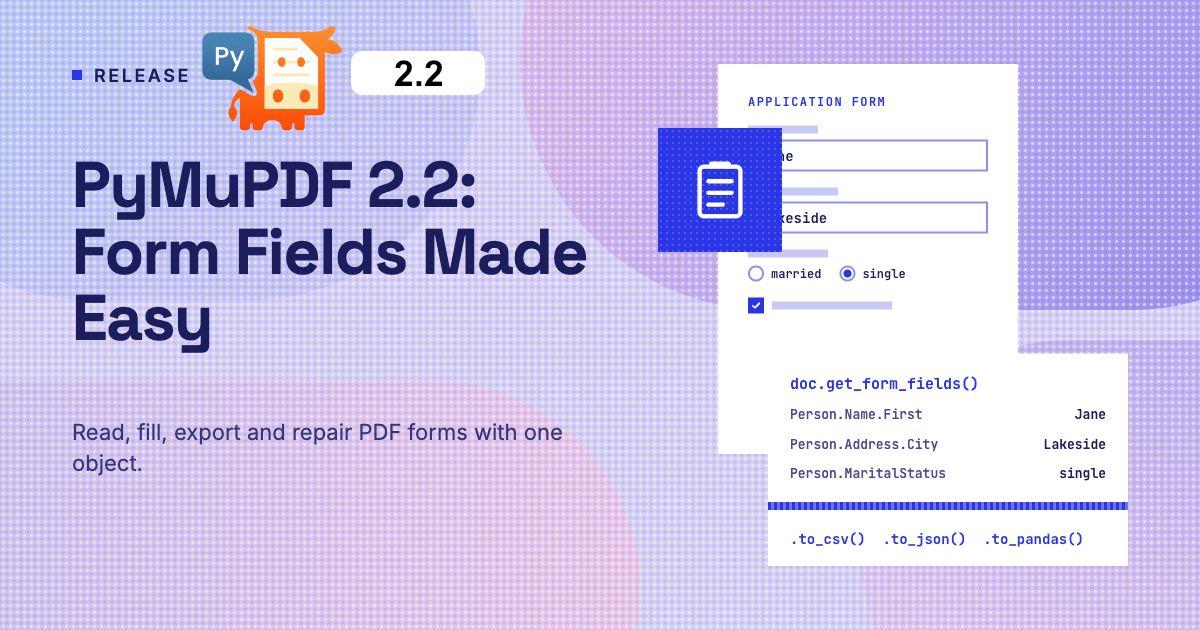
PyMuPDF 2.2 is out today, and its headline feature is a new way to work with PDF forms: the FormFields class. One call gives you a complete, consistent picture of every field and widget in a form. From there you can read values, fill them in, export and import them in bulk, and repair the structural problems that make real-world forms so awkward to process.
This builds on PyMuPDF 2.0, which added support for form field hierarchies, radio button groups and widget aliases. Version 2.2 pulls all of that together into one object designed for the jobs people actually do with forms.
What's new: one view of every form field
Call Document.get_form_fields() and you get a FormFields object that has already reconciled the form from two directions. It walks the field tree down from the PDF's central /AcroForm/Fields array, and it works up from the widget annotations on each page, fixing broken parent links as it goes. Combining the two catches fields that a single pass would miss.
That means FormFields handles the messy cases that trip up other tools:
- Fields on template pages. Fields defined on
/Templatepages, used to add pages to a form on demand, are found and listed (read-only). - Flat fields and flat radio button groups. Widgets that share a name but have no parent field object are detected, and can be converted to the standard parent-child structure.
- Field-widgets. Objects that combine a field and its widget in one dictionary, a structure the PDF specification discourages, are detected and can be split.
- JavaScript radio button groups. Radio buttons tied together only by JavaScript are detected, so their states update correctly when the selection changes.
Reading a form
Start by opening the PDF and asking for its form fields. Field names use dots to show hierarchy.
Here’s an example:
import pymupdf

doc = pymupdf.open("application.pdf")

formfields = doc.get_form_fields()

print(formfields.field_names())

# ['Person', 'Person.Address', 'Person.Address.City', 'Person.Address.Street',

# 'Person.MaritalStatus', 'Person.Name', 'Person.Name.First',

# 'Person.Name.Last', 'Person.WordOfMouth']
Only terminal fields, the ones at the end of a branch, hold values and own widgets on the page. field_info() tells you everything about one field, including its value, type, pages and a health check:
info = formfields.field_info("Person.Address.City")
print(info["value"], info["type"], info["pages"])
# Lakeside text [0]To see just the fields you can fill in, with their types and allowed choices, use list_valid_terminal_fields():
for field in formfields.list_valid_terminal_fields():
    print(field["name"], field["type"], field["value"], field["choices"])

# Person.Name.First text John None
# ...
# Person.MaritalStatus radio married ['married', 'single']Radio button groups come back as a single field with their choices listed, even though each button is a separate widget on the page.
Filling, exporting and repairing
Set values by name
set_value() takes a field name and a value that fits the field's type, or one of its choices. If the form has calculated fields, pass recalculate=True on your last change, or call Document.recalculate_form() once at the end. Then call refresh() so the FormFields object reflects the updated PDF.
formfields.set_value("Person.Name.First", "Jane")
formfields.set_value("Person.MaritalStatus", "single", recalculate=True)
formfields.refresh()

doc.save("application-filled.pdf")Move values in and out in bulk
Every editable field can be exported to CSV, JSON, a list of Python dictionaries or a pandas DataFrame. The matching from_ methods read the same structure back in, recalculate the form and refresh the object, which makes round trips through a spreadsheet or another system straightforward.
df = formfields.to_pandas()

print(df.to_string(index=False))

# field type format choices current_value new_value
# Person.Name.First text string NaN John NaN
# Person.MaritalStatus radio string married|single single NaN

formfields.to_csv("fields.csv")

# ...fill in the new values, then:

formfields.from_csv("fields.csv")

doc.save("application-filled.pdf")to_pandas() needs pandas installed; the other formats have no extra dependencies.
Find and fix broken structure
The counters tell you at a glance whether a form has structural problems, and each field's diagnosis explains what is wrong with it:
print(formfields.count_flat_rbgs, formfields.count_flat_fields, formfields.count_field_widgets)

for name in formfields.field_names():
    diagnosis = formfields.field_info(name)["diagnosis"]

    if not diagnosis["ok"]:
print(name, diagnosis.get("problems"))To fix a field, call the matching repair method and then refresh(). Each one rewrites the field into the standard parent-child structure and returns True on success:
formfields.repair_flat_rbg("Gender") # flat radio button group
formfields.repair_flat_field("Signature") # flat field
formfields.repair_field_widget("Email") # combined field-widget
formfields.refresh()If you'd rather fix everything up front, create the FormFields object with repair=True and these problems are repaired automatically. Refreshing, or simply creating a new object, typically takes under a tenth of a second, even for forms with hundreds of fields.
Where it helps
- Bulk form filling. Generate hundreds of completed applications, contracts or tax forms from a CSV or a database export with
from_csv()orfrom_dicts(). - Data capture. Pull submitted form values straight into pandas or JSON for analysis, reporting or loading into another system.
- Form quality checks. Scan incoming forms for flat fields, field-widgets and other structural problems before they cause trouble in viewers or downstream tools, and repair them in the same script.
- Document AI pipelines. Give an AI model clean, named field values instead of asking it to read a form off the page.
A few tips:
- Call
refresh()after any change to the PDF, including adding or deleting widgets, inserting or deleting pages, setting values or running a repair. - Recalculate once at the end of a batch of changes rather than after every value.
- Fields on template pages can be inspected but not changed, since they usually hold no values until a page is created from the template.
Also in 2.2, and how to upgrade
Note
The 2.2 release also adds Page.search_for_fuzzy(), which finds near-matches by edit distance and returns the matched text, distance and position with no extra dependencies!
Upgrade with pip:
pip install --upgrade pymupdfThen open one of your own forms, call get_form_fields(), and see what it finds. We'd love to hear how you get on on Discord or the MuPDF forum.
Sources
Discuss This Article with the Community
Have a question, a different approach, or something you built after reading this? Share it on the forum or join the Discord, we'd love to hear from you.