Fuzzy Text Search with PyMuPDF 2.2
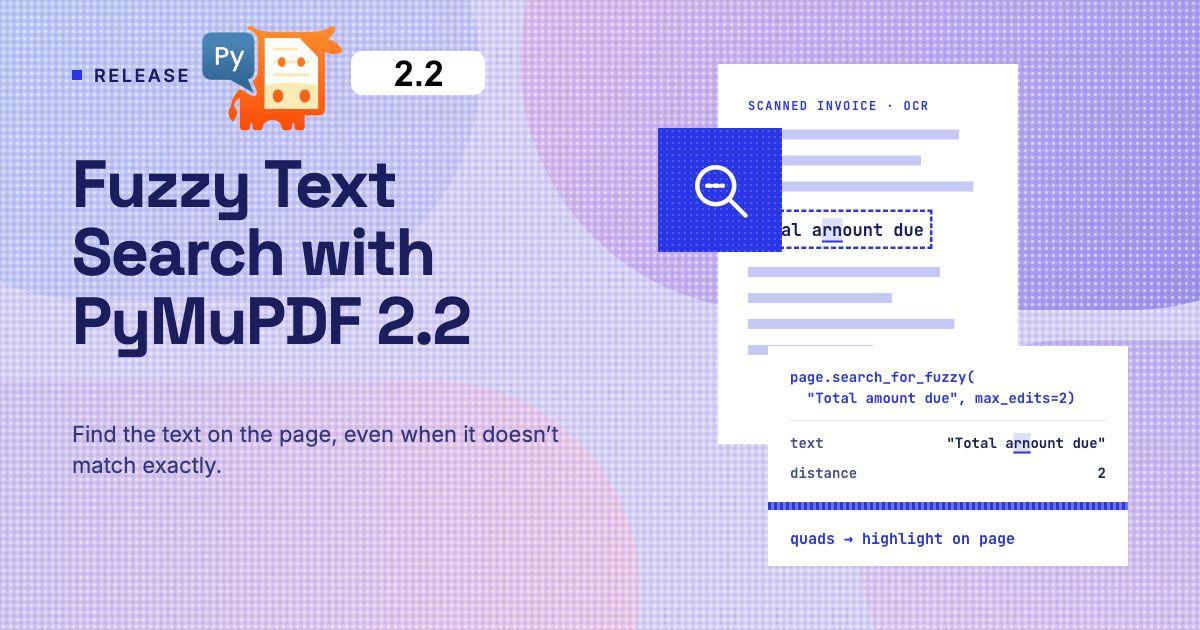
PyMuPDF 2.2 adds Page.search_for_fuzzy(), a way to find text on a PDF page even when it doesn't match your search string exactly. It tolerates the small differences that break ordinary search, such as OCR mistakes, typos and slightly altered quotes, and tells you exactly how different each match is and where it sits on the page.
It needs no extra packages, and it returns the same kind of page positions as Page.search_for(), so you can highlight, redact or crop around a fuzzy match just as you would an exact one. This post shows how it works, walks through two practical examples, and covers what to watch out for.
Why exact search falls short
search_for() is fast and precise, but it only finds text that matches character for character. In practice, the text you're looking for and the text on the page often differ slightly:
- OCR errors. Scanned documents misread characters, so "
Invoice" maybe becomes "lnvoice" and "0" maybe becomes "O". - Spelling and spacing variants. A document writes "
per cent" or "colour" where your search string has "percent" or "color". - Near-quotes from AI models. An LLM citing a document often reproduces a passage almost, but not exactly, word for word.
- Typos and variants. Names, addresses and product codes are often written slightly differently from one document to the next.
In each case an exact search returns nothing, and you can't tell whether the text is truly missing or just slightly different. Fuzzy search answers that question.
The basics
page.search_for_fuzzy(needle, *, max_edits, clip=None, textpage=None)needleis the text to look for.max_editsis required. It sets the most insertions, deletions and substitutions a match may need, measured as Levenshtein edit distance. It must be 0 or more and smaller than the length of the search text.cliplimits the search to a rectangle on the page, such as one column or the area of a table.textpagelets you pass in a TextPage you've already made, including an OCR one.
The method returns a list with one dictionary per match, in the order the text appears on the page:
| Key | What it holds |
|---|---|
| text | The original text that matched, with its case, punctuation and line breaks intact |
| distance | The number of edits needed to turn your search text into the match. This is an edit count, not a confidence score |
| quads | A list of Quad objects giving the match's position on the page, one per line it covers |
Here's the simplest use:
import pymupdf

doc = pymupdf.open("contract.pdf")
page = doc[0]

for match in page.search_for_fuzzy("termination for convenience", max_edits=2):
    print(match["distance"], repr(match["text"]))
Exact matches come back too, with a distance of 0, so one call finds both the perfect and the near matches. An empty list means nothing on the page came within max_edits.
Example: check an AI answer's quotes against the PDF
When an AI model answers a question from a document, it often quotes the source to back up its answer. Those quotes are worth checking: a model can drop a word, change a figure or quote text that isn't there at all. Fuzzy search sorts each quote into one of three outcomes, so you know which ones to trust and which to look at.
The pattern is to try an exact search first, since it's faster, and fall back to fuzzy search only when that finds nothing:
import pymupdf

def check_quote(page, quote, max_edits=3):
    """Return 'exact', 'close' or 'not found', and highlight any match."""
    quads = page.search_for(quote, quads=True)
    if quads:
        page.add_highlight_annot(quads)
        return "exact", []

    matches = page.search_for_fuzzy(quote, max_edits=max_edits)
    for match in matches:
        page.add_highlight_annot(match["quads"])
    return ("close", matches) if matches else ("not found", [])

doc = pymupdf.open("annual-report.pdf")
page = doc[4]
quotes = [
    "revenue grew by twelve percent in the third quarter",
    "operating costs fell for the second year running",
]

for quote in quotes:
    status, matches = check_quote(page, quote)
    print(f"{status:>9}  {quote}")
    for m in matches:
        print(f"           distance {m['distance']}: {m['text']!r}")

doc.save("annual-report-checked.pdf")The output tells you what to do with each quote:
- Exact quotes are supported by the page as written.
- Close quotes exist on the page with small differences. The printed text shows exactly what the page says, so a reviewer can compare it with the quote in seconds.
- Not found quotes didn't appear within the edit budget and need a closer look; they may be on another page, heavily paraphrased, or invented.
Because every match is highlighted, the saved PDF doubles as a review copy that shows each piece of supporting evidence in place.
Example: search scanned pages
Scanned PDFs have no text layer until you run OCR, and OCR output is where fuzzy search earns its keep. search_for_fuzzy() doesn't run OCR itself, but it accepts an OCR TextPage from get_textpage_ocr(), which needs Tesseract installed.
OCR is the slow step, so run it once per page and reuse the TextPage for every search on that page:
import pymupdf

doc = pymupdf.open("scanned-invoices.pdf")
labels = ["Invoice number", "Total amount due", "Payment terms"]

for page in doc:
    textpage = page.get_textpage_ocr()
    for label in labels:
        matches = page.search_for_fuzzy(label, max_edits=2, textpage=textpage)
        for match in matches:
            rect = match["quads"][0].rect
            print(page.number, label, "->", repr(match["text"]), rect)
Each match's position tells you where the label sits on the page, which is a useful anchor for reading the value printed next to it. When you pass a textpage, any clip you give is ignored, as with search_for(). OCR always covers the whole page, so to focus on one area, filter the matches by their quads afterwards.
How matching works
Before comparing, both your search text and the page text are normalised, so differences that rarely matter don't use up your edit budget:
- Case is ignored, using Unicode case folding, so "Straße" matches "STRASSE".
- Whitespace is collapsed, so runs of spaces count as one, and spaces at the start or end of your search text are ignored.
- Hyphenated words are rejoined when a hyphen and line break fall between two letters within a block of text.
Everything else counts. Punctuation, digits and signs are kept, so changing any of them costs an edit. Some examples:
| Search text | Page text | Distance |
|---|---|---|
| Invoice | INVOICE | 0 |
| Straße | STRASSE | 0 |
| Invoice | lnvoice | 0 |
| percent | per cent | 1 |
| 12.5% | 12.6% | 1 |
| form | from | 2 |
The last row shows a quirk worth knowing: swapping two neighbouring letters counts as two substitutions, not one edit.
A few more rules shape the results:
- It's a substring search. A match can start or end partway through a word; it isn't widened to whole words.
- Overlapping candidates are resolved for you. The lowest distance wins, then the length closest to your search text, then the earliest position. Separate, adjacent occurrences stay separate.
- Text is searched in extraction order. Columns and tables aren't reconstructed first, so a phrase that runs across two columns may not be found.
Choosing max_edits
There's no single right value; it depends on how long your search text is and how noisy the source is. As a starting point:
- For short labels and names, use 1 or 2. Short strings become ambiguous quickly, and a high budget can match unrelated words.
- For sentences and quotes, allow more, roughly one edit for every 10 to 15 characters, and raise it for poor-quality scans.
- Check the distances you get back. If good matches cluster at low distances and false hits appear only near your limit, lower it.
Performance and caveats
search_for_fuzzy() is written in Python, separately from MuPDF's exact search, so search_for() remains the faster choice whenever exact text is enough. To keep fuzzy search quick:
- Search exactly first. Fall back to fuzzy search only when an exact search comes up empty, as in the quote-checking example.
- Reuse a TextPage for several searches on the same page. This avoids extracting text from the PDF each time, although some search data is still rebuilt on every call.
- Narrow the area with
clipwhen you know roughly where the text should be. - Keep
max_editsas low as works. The method first uses exact pieces of your search text to narrow down where to look, but with a positive budget the worst case grows with the page length times the search length.
The most important caveat is about meaning. A fuzzy match is a candidate for review, not proof. One edit can turn 12.5% into 12.6%, "+" into "−", or "is" into "is not" (with a few more), so a small distance doesn't mean the two texts say the same thing. Where accuracy matters, show any match with a distance above 0 to a person, along with its highlighted position on the page.
Get started
search_for_fuzzy() is available from PyMuPDF 2.2. Upgrade with pip:
pip install --upgrade pymupdfThen try it on a document where exact search lets you down: a scanned contract, an OCR'd archive, or the source behind an AI answer you want to check. We'd love to hear how you use it on Discord or the MuPDF forum.
Sources
Discuss This Article with the Community
Have a question, a different approach, or something you built after reading this? Share it on the forum or join the Discord, we'd love to hear from you.