Cite Claude's Answers at the Exact Spot in the PDF
November 10, 2026
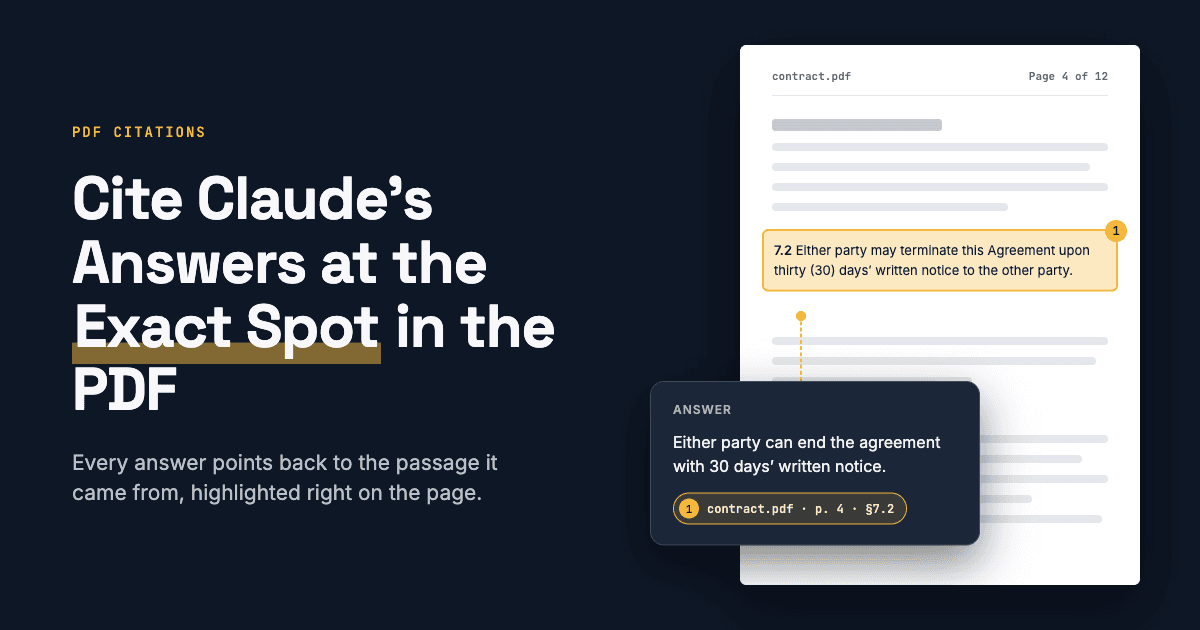
Turn Claude's page-level citations into exact coordinates and evidence your users can check in seconds, with about 60 lines of PyMuPDF code.
When you ask Claude about a PDF with citations enabled, every claim in the answer comes with the passage that supports it. That is a big step toward answers people can trust. But the citation tells you only the page and the quoted text. A reviewer checking an answer about a 200-page filing still has to open page 147 and hunt for the sentence.
PyMuPDF can close that gap. It reads the exact position of every word in the PDF, so it can take Claude's quoted text and return the precise region on the page. In this article we will turn Claude's citations into exact page coordinates, then into evidence images and, optionally, a highlighted PDF. Everything runs locally, with no extra model.
What Claude returns
With citations enabled on a PDF document, Claude's response is a list of text blocks. Blocks that make a claim carry a list of citations, and each PDF citation looks like this:
{
  "type": "page_location",
  "cited_text": "Net revenue increased 12% to $4.1 billion, driven by growth in the enterprise software segment. ",
  "document_index": 0,
  "document_title": "Acme Annual Report 2025",
  "start_page_number": 1,
  "end_page_number": 2
}Two details matter. Page numbers start at 1, and end_page_number is exclusive, so the citation above covers page 1 only. And the citation has no position on the page: that is the part we add.
Step 1: Ask Claude with citations enabled
Send the PDF as a document block and set citations.enabled to True:
import base64, pathlib
import anthropic
import pymupdf

path = "acme_annual_report.pdf"
pdf_data = base64.standard_b64encode(pathlib.Path(path).read_bytes()).decode()

client = anthropic.Anthropic()
response = client.messages.create(
    model="claude-opus-5-5",
    max_tokens=1024,
    messages=[{
        "role": "user",
        "content": [
            {
                "type": "document",
                "source": {"type": "base64", "media_type": "application/pdf", "data": pdf_data},
                "title": "Acme Annual Report 2025",
                "citations": {"enabled": True},
            },
            {"type": "text", "text": "What were Acme's key financial results, and what risks does it report?"},
        ],
    }],
)The PDF needs a text layer. Claude cannot cite scanned PDFs that contain only images of text, so run OCR first if your documents are scans. PyMuPDF's OCR support can add the text layer.
Step 2: Find the cited text on the page
Page.search_for() does most of the work. It is case-insensitive, it matches text that runs across line breaks, and it rejoins words hyphenated at the end of a line, so a quote that says "investment" still matches a page that prints "invest-" at the end of one line and "ment" at the start of the next. With quads=True it returns one quadrilateral per line fragment, which fits the text tightly even when it is rotated.
import re
import pymupdf

def locate(page, cited_text):
    """Return the quads of cited_text on a page, or [] if not found."""
    text = " ".join(cited_text.split())          # collapse whitespace and line breaks
    quads = page.search_for(text, quads=True)
    if quads:
        return quads
return _locate_by_words(page, text) # fallback for small differencesStep 3: Handle small differences
Claude's quoted text comes from its own text extraction, so it occasionally differs from the page in small ways, such as a missing comma or different quote marks. When search_for() finds nothing, we fall back to matching the quote word by word, ignoring punctuation and case:
def _norm(word):
    return re.sub(r"[^\w%$.]", "", word).lower().rstrip(".")


def _locate_by_words(page, text):
    """Match the quote word by word, ignoring punctuation, case and hyphenation."""
    target = [_norm(w) for w in text.split() if _norm(w)]
    words = page.get_text("words", flags=pymupdf.TEXT_DEHYPHENATE)
    tokens = [(_norm(w[4]), pymupdf.Rect(w[:4])) for w in words]
    tokens = [t for t in tokens if t[0]]
    n = len(target)
    for i in range(len(tokens) - n + 1):
        if all(tokens[i + k][0] == target[k] for k in range(n)):
            return [r.quad for _, r in tokens[i:i + n]]
return []This fallback is deliberately simple. It still needs every word to match, which is what you want for evidence: a citation that cannot be found is a signal to check, not something to paper over.
Step 4: Locate every citation in the response
Now walk through the response, convert Claude's page numbers to PyMuPDF's 0-based page numbers, and locate each cited passage. Pass the documents in the same order you sent them to Claude, so document_index maps to the right file.
def ground_citations(response, docs):
    """Map each page_location citation in a Claude response to quads on the page.

    response: the Message returned by client.messages.create()
    docs: the PyMuPDF documents, in the order they were sent to Claude
    """
    results = []
    for block in response.content:
        if block.type != "text" or not getattr(block, "citations", None):
            continue
        for cit in block.citations:
            if cit.type != "page_location":
                continue
            doc = docs[cit.document_index]
            # Claude's page numbers are 1-based; end_page_number is exclusive
            for pno in range(cit.start_page_number - 1, cit.end_page_number - 1):
                quads = locate(doc[pno], cit.cited_text)
                if quads:
                    results.append({"claim": block.text, "cited_text": cit.cited_text,
                                    "doc": cit.document_index, "page": pno, "quads": quads})
                    break
            else:
                results.append({"claim": block.text, "cited_text": cit.cited_text,
                                "doc": cit.document_index, "page": None, "quads": []})
return resultsStep 5: Return coordinates
Each located citation now has a page and a set of quads. That is the core result, and everything else is a way of displaying it. Return it as PDF coordinates, in points (72 per inch). PyMuPDF measures from the top-left corner of the unrotated page; the PDF file format itself measures from the bottom-left, so if another tool expects that, convert with rect * page.transformation_matrix. To draw a box on a page image rendered at a given resolution, multiply the values by dpi / 72.
def to_json(results):
    """Page number (1-based) and bounding box in PDF points for each citation."""
    out = []
    for r in results:
        item = {"claim": r["claim"], "cited_text": r["cited_text"], "found": bool(r["quads"])}
        if r["quads"]:
            box = pymupdf.Rect()
            for q in r["quads"]:
                box |= q.rect
            item["page_number"] = r["page"] + 1
            item["rect"] = [round(v, 1) for v in box]   # x0, y0, x1, y1
        out.append(item)
return outPutting it together:
import json

doc = pymupdf.open(path)
results = ground_citations(response, [doc])
evidence = to_json(results)
print(json.dumps(evidence, indent=2))[
{
"claim": "Acme's revenue grew 12% to $4.1 billion.",
"cited_text": "Net revenue increased 12% to $4.1 billion, driven by ...",
"found": true,
"page_number": 1,
"rect": [72.0, 104.5, 378.3, 135.9]
}
]Store this alongside the answer and you have an audit record: which claim, which document, which page, and exactly where. If a citation comes back with "found": false, flag it for review rather than presenting it as evidence. A web app can draw these boxes over a page image or inside a PDF viewer; a later article in this series shows how.
Step 6 (optional): Show the evidence
Two outputs cover most needs: an image of the evidence for chat and review screens, and a highlighted PDF for audit trails and downloads.
Evidence snippet
A small image of the cited passage with a few lines around it lets the reader check a claim without opening the PDF. PyMuPDF renders any region of a page with get_pixmap(clip=...). The function below adds a temporary highlight, renders the region and removes the highlight again, so the document is left unchanged.
def snippet(docs, r, margin=24, dpi=150, full_width=False):
    """Render the cited region, highlighted, with some surrounding context.

    margin: points of context to add around the region (72 points = 1 inch)
    full_width: widen the image to the full page width
    The document itself is left unchanged.
    """
    page = docs[r["doc"]][r["page"]]
    box = pymupdf.Rect()
    for q in r["quads"]:
        box |= q.rect
    clip = box + (-margin, -margin, margin, margin)    # grow the box on all sides

    # Extend the clip to whole text lines, so no line is cut in half
    for block in page.get_text("dict")["blocks"]:
        for line in block.get("lines", []):
            if clip.intersects(line["bbox"]):
                clip |= line["bbox"]
    clip += (-4, -4, 4, 4)                              # a little padding
    if full_width:
        clip.x0, clip.x1 = page.rect.x0, page.rect.x1
    clip &= page.rect                                   # stay inside the page

    annot = page.add_highlight_annot(r["quads"])        # temporary highlight
    pix = page.get_pixmap(clip=clip, dpi=dpi)
    page.delete_annot(annot)                            # remove it again
return pixIt grows the cited region by a margin, then extends it to whole text lines so the image never cuts a line in half. Use margin=0 for just the cited lines, a larger margin for more context, or full_width=True when a table or figure next to the passage gives it meaning.
for i, r in enumerate(results):
    if r["quads"]:
        snippet([doc], r).save(f"evidence_{i}.png")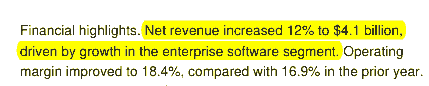
Highlighted PDF
To give reviewers a file they can open in any PDF viewer, add a highlight annotation for each citation, with the claim as the annotation's note, and save a copy:
def highlight(docs, results):
    for r in results:
        if not r["quads"]:
            continue
        page = docs[r["doc"]][r["page"]]
        annot = page.add_highlight_annot(r["quads"])
        annot.set_info(content=r["claim"])
annot.update()highlight([doc], results)
doc.save("acme_highlighted.pdf")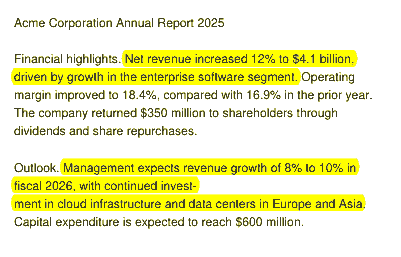
Each highlight in acme_highlighted.pdf shows the claim it supports, and the original file is not changed.
Limits to know
- The quote must match the page word for word, apart from case, punctuation, line breaks and hyphenation. Paraphrased citations are reported as not found.
- If the same sentence appears more than once on a page,
search_for()returns every occurrence, so all of them are highlighted. Check the number of matches if that matters for your use. - Claude cites text only, so figures and images are not covered, and scanned pages need OCR before Claude can cite them.
We are working on built-in support for this in PyMuPDF, including more tolerant matching and adapters for other LLM providers.
Why this matters
An answer with a page number asks the reader to trust it. An answer with a highlight lets the reader check it. For contracts, filings, policies and research, that difference decides whether AI output can be used at all. Because PyMuPDF reads positions from the PDF itself, the highlight is exactly where the text is, and nothing leaves your infrastructure.
Next steps
- Get the complete notebook from the PyMuPDF cookbook repository.
- See everything on grounding with PyMuPDF | Grounding.
Discuss This Article with the Community
Have a question, a different approach, or something you built after reading this? Share it on the forum or join the Discord, we'd love to hear from you.